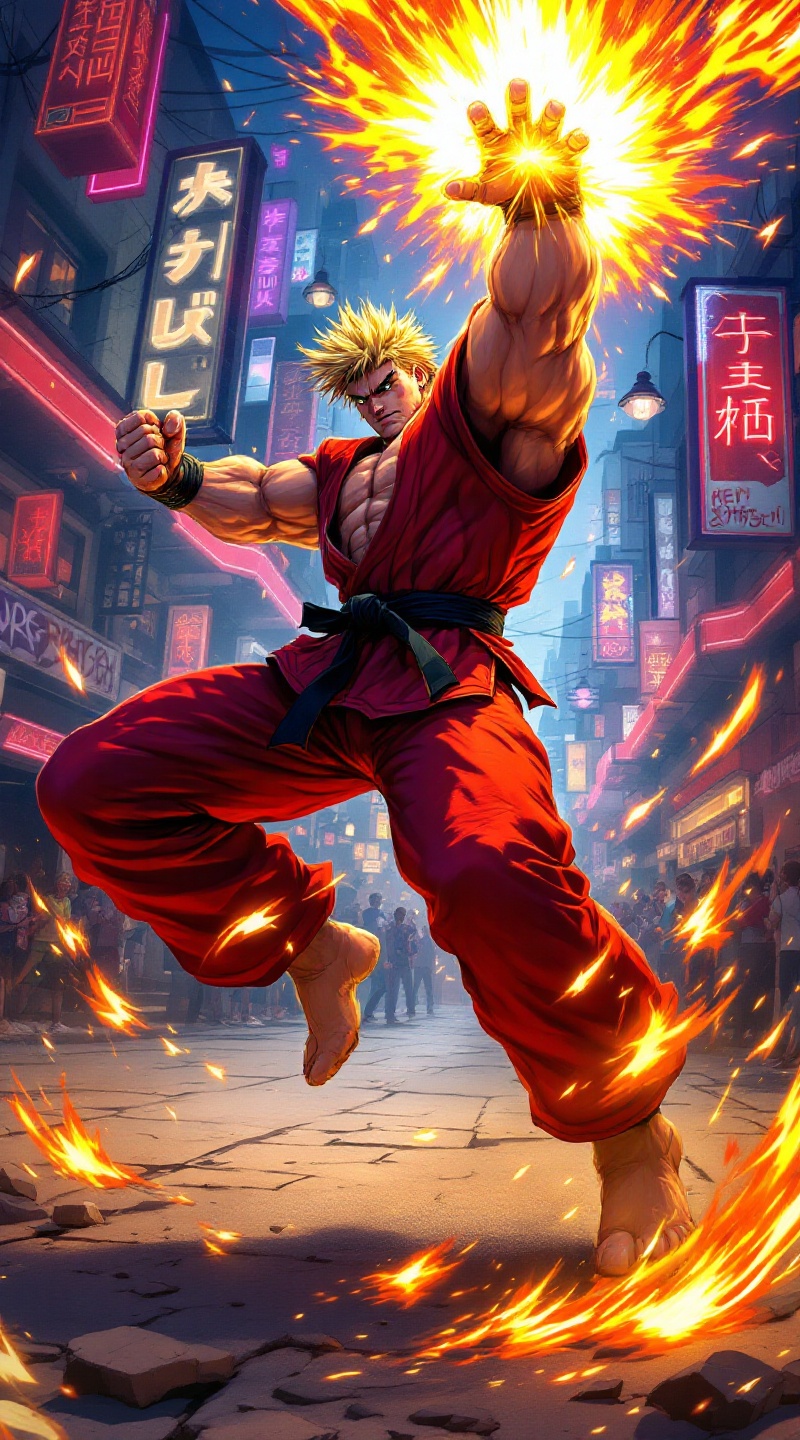
Fiery Showdown: Ken's Shoryuken! - Flux.1.1 pro
Indicador
Create a dynamic and vibrant scene inspired by the fighting game genre, specifically "Street Fighter II." Focus on Ken Masters, a muscular fighter with spiky blonde hair, wearing a red gi with a black belt, showcasing his fierce determination. Capture his signature move, the Shoryuken, as he launches into the air, surrounded by a fiery aura. The background features an iconic urban setting, with neon lights and a bustling street filled with cheering spectators. Include elements like a classic arcade machine and graffiti art on the walls to enhance the atmosphere. The overall mood is intense and electrifying, embodying the spirit of competition and martial arts mastery.
Análisis Detallado del Prompt de Imagen de Flux IA
Analiza el prompt detallado utilizado para generar la imagen con Flux IA Image Generator.
Explorar Mensajes para Flux IA
Cómo generar una imagen por Flux.1.1 pro
Sigue estos cuatro sencillos pasos para crear la imagen que deseas.
Paso 1: Ingresa tu texto (No dudes en refinar tu prompt para mejores resultados)
Paso 2: Elige la relación de aspecto de la imagen
Paso 3: Selecciona tu modelo Flux:
Paso 4: Haz clic en el botón Generar y espera unos segundos para tu imagen
Herramientas Flux IA relacionadas para prompts sobre Flux.1.1 pro
Descubre herramientas avanzadas de Flux IA para potenciar tu flujo de trabajo creativo.