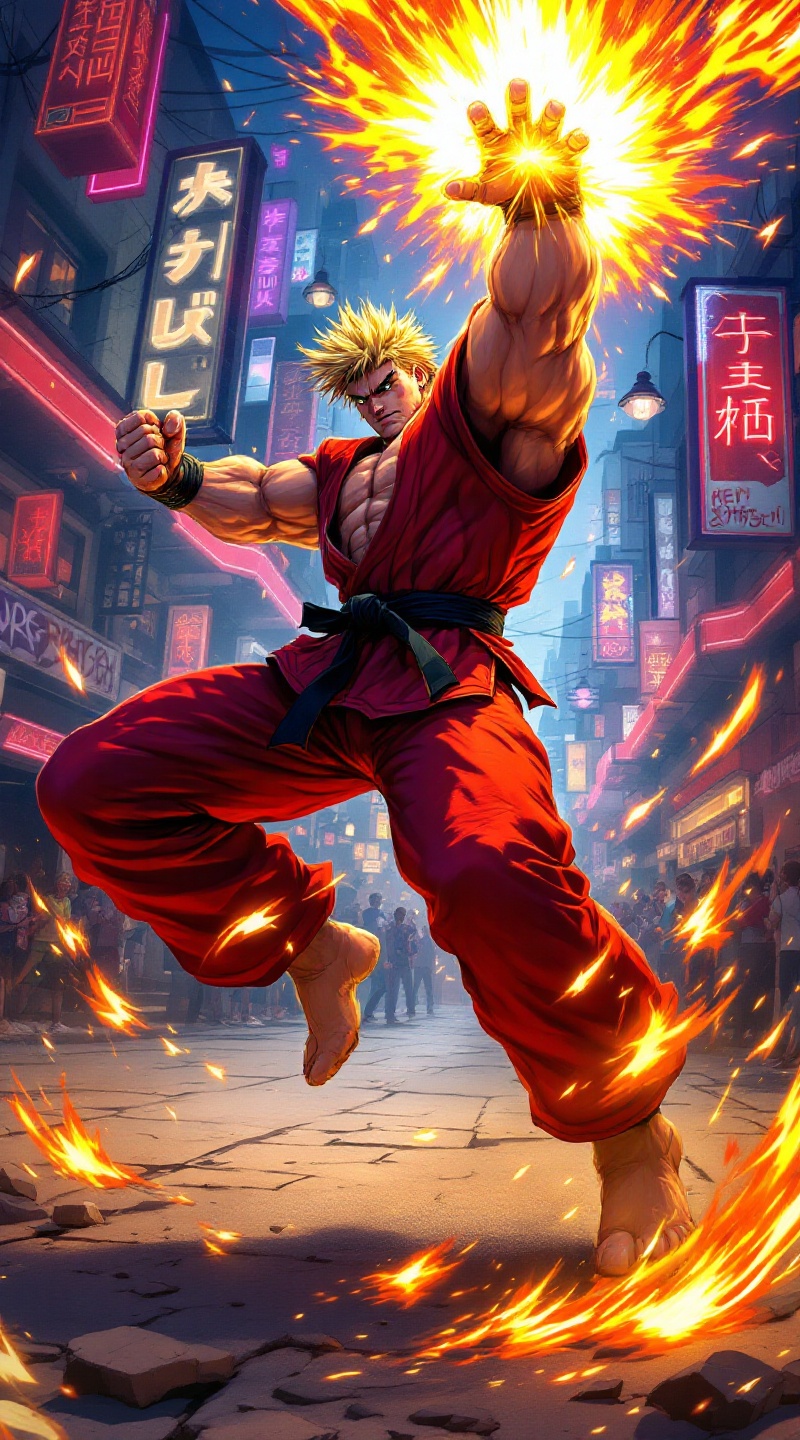
Fiery Showdown: Ken's Shoryuken! - Flux.1.1 pro
Invite
Create a dynamic and vibrant scene inspired by the fighting game genre, specifically "Street Fighter II." Focus on Ken Masters, a muscular fighter with spiky blonde hair, wearing a red gi with a black belt, showcasing his fierce determination. Capture his signature move, the Shoryuken, as he launches into the air, surrounded by a fiery aura. The background features an iconic urban setting, with neon lights and a bustling street filled with cheering spectators. Include elements like a classic arcade machine and graffiti art on the walls to enhance the atmosphere. The overall mood is intense and electrifying, embodying the spirit of competition and martial arts mastery.
Analyse Détaillée du Prompt d'Image Flux IA
Analysez le prompt détaillé utilisé pour générer l'image avec Flux IA Image Generator.
Explorez les invites Flux IA
Comment générer une image par Flux.1.1 pro
Suivez ces quatre étapes simples pour créer l'image désirée.
Étape 1 : Entrez votre texte (N'hésitez pas à affiner votre prompt pour de meilleurs résultats)
Étape 2 : Choisissez le ratio d'aspect de l'image
Étape 3 : Sélectionnez votre modèle Flux :
Étape 4 : Cliquez sur le bouton Générer et attendez quelques secondes pour votre image
Outils Flux IA liés aux prompts sur Flux.1.1 pro
Découvrez des outils avancés de Flux IA pour booster votre flux de travail créatif.