Counterfeit security badges glow in cloning facilities - Flux.1.1 pro
Invite
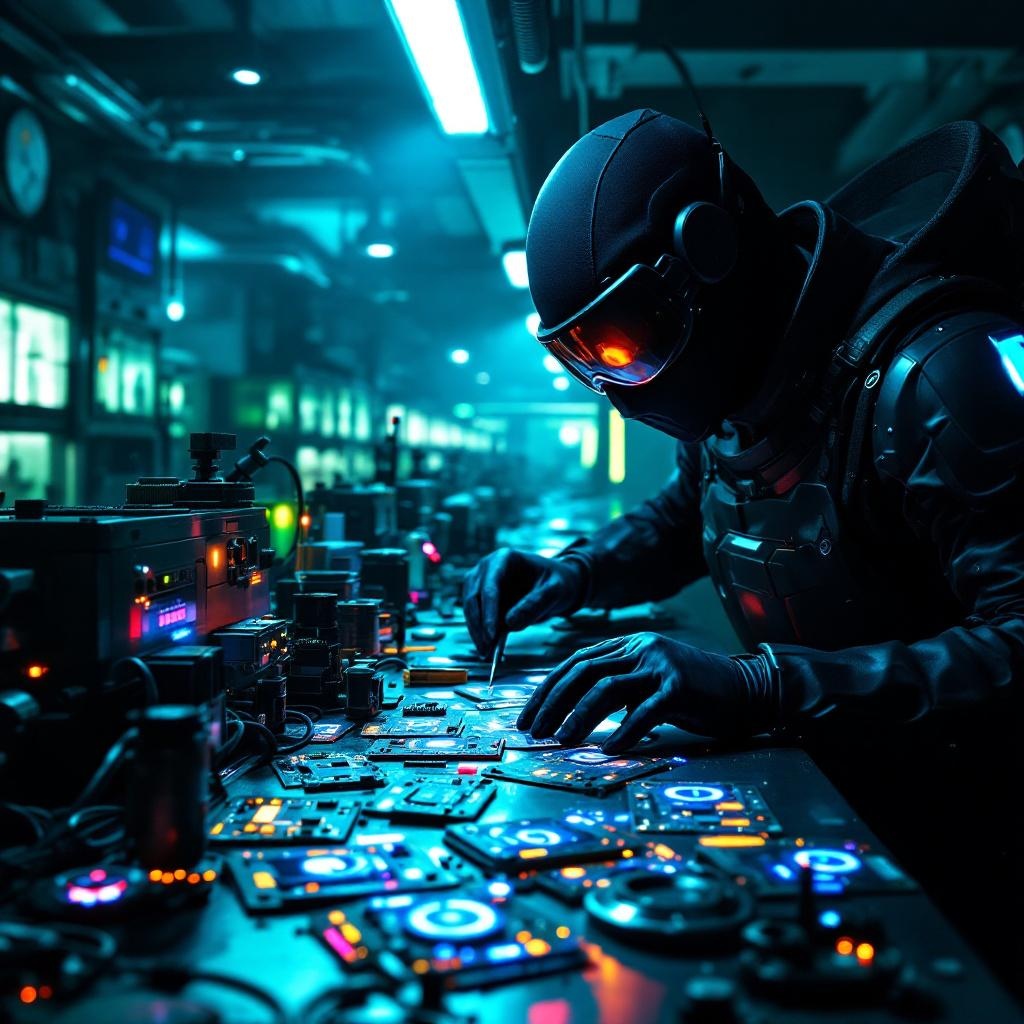
In a dimly lit, high-tech cloning facility bathed in neon hues of electric blue and toxic green, counterfeit security badges pulse with an eerie, artificial glow, their holographic emitters flickering like unstable fireflies. The badges, meticulously forged with intricate circuitry and shimmering glyphs, are strewn across a stainless-steel workbench littered with soldering tools, coiled wires, and half-assembled replicas. A masked figure in a sleek, black bodysuit adjusts a magnifying visor, their gloved fingers tracing the faint luminescence of a badge’s counterfeit seal, casting jagged shadows on the damp concrete walls. Behind them, rows of cloning vats hum softly, their translucent tubes filled with suspended figures, while flickering surveillance drones patrol the ceiling, their red lenses scanning for intruders. The air is thick with the acrid scent of ozone and synthetic flesh, and the distant echo of alarms blends with the low buzz of malfunctioning tech, creating a tense, clandestine atmosphere where authenticity is the rarest currency.
Analyse Détaillée du Prompt d'Image Flux IA
Analysez le prompt détaillé utilisé pour générer l'image avec Flux IA Image Generator.
Explorez les invites Flux IA
Comment générer une image par Flux.1.1 pro
Suivez ces quatre étapes simples pour créer l'image désirée.
Étape 1 : Entrez votre texte (N'hésitez pas à affiner votre prompt pour de meilleurs résultats)
Étape 2 : Choisissez le ratio d'aspect de l'image
Étape 3 : Sélectionnez votre modèle Flux :
Étape 4 : Cliquez sur le bouton Générer et attendez quelques secondes pour votre image
Outils Flux IA liés aux prompts sur Flux.1.1 pro
Découvrez des outils avancés de Flux IA pour booster votre flux de travail créatif.