Fiery Showdown: Ken's Shoryuken! - Flux.1.1 pro
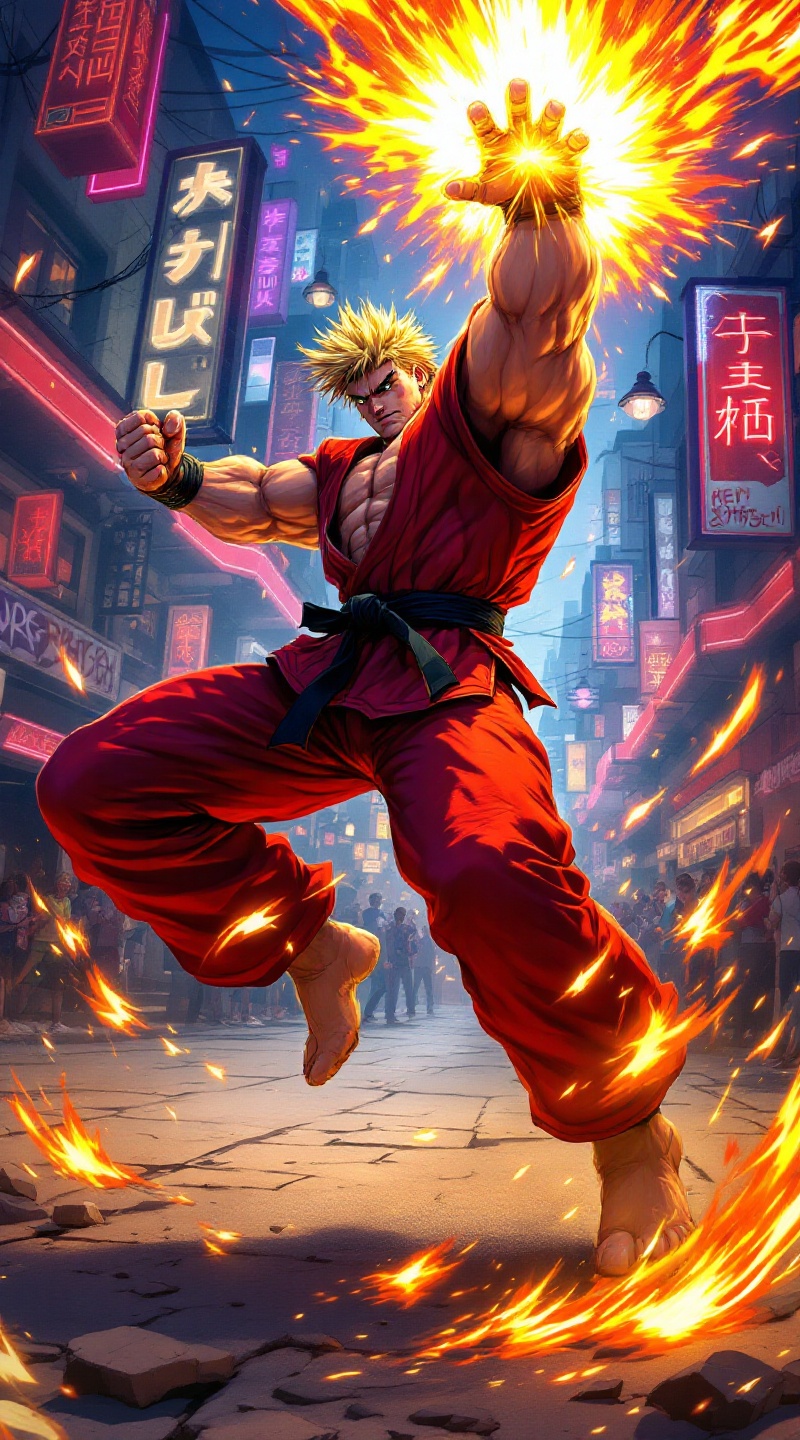
prompt
Create a dynamic and vibrant scene inspired by the fighting game genre, specifically "Street Fighter II." Focus on Ken Masters, a muscular fighter with spiky blonde hair, wearing a red gi with a black belt, showcasing his fierce determination. Capture his signature move, the Shoryuken, as he launches into the air, surrounded by a fiery aura. The background features an iconic urban setting, with neon lights and a bustling street filled with cheering spectators. Include elements like a classic arcade machine and graffiti art on the walls to enhance the atmosphere. The overall mood is intense and electrifying, embodying the spirit of competition and martial arts mastery.
Detailed Analysis of the Flux AI Image Prompt
Analyze the detailed prompt used to generate the image with Flux AI Image Generator.
Explore Flux Prompts for the Flux AI Image Generator
How to generate image by Flux.1.1 pro
Follow these four simple steps to create your desired image.
Step 1: Enter Your Text (Feel free to refine your prompt for better results)
Step 2: Choose Image Aspect Ratio
Step 3: Select Your Flux Model:
Step 4: Click the Generate Button and Wait a Few Seconds for Your Image
Related Flux AI tools for prompts about Flux.1.1 pro
Discover advanced tools from Flux AI to boost your creative workflow.