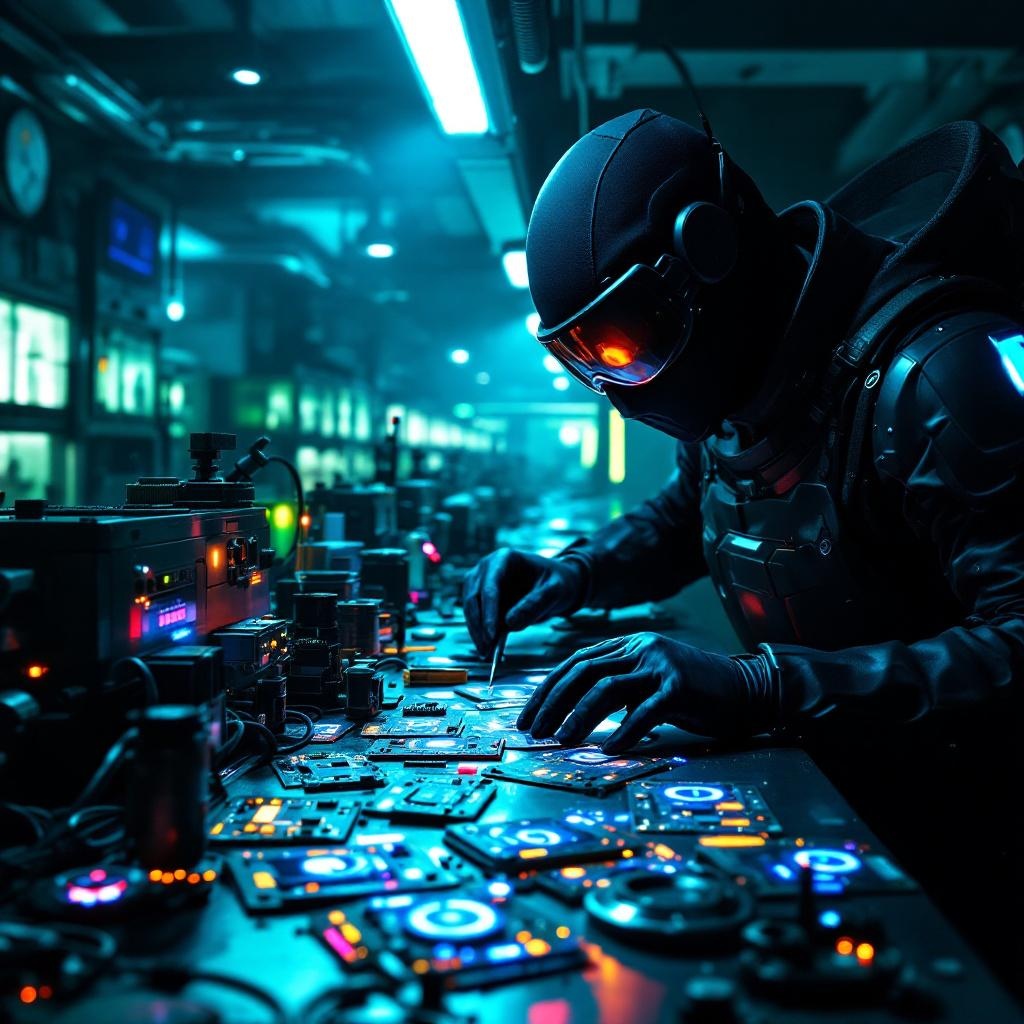
Counterfeit security badges glow in cloning facilities - Flux.1.1 pro
prompt
In a dimly lit, high-tech cloning facility bathed in neon hues of electric blue and toxic green, counterfeit security badges pulse with an eerie, artificial glow, their holographic emitters flickering like unstable fireflies. The badges, meticulously forged with intricate circuitry and shimmering glyphs, are strewn across a stainless-steel workbench littered with soldering tools, coiled wires, and half-assembled replicas. A masked figure in a sleek, black bodysuit adjusts a magnifying visor, their gloved fingers tracing the faint luminescence of a badge’s counterfeit seal, casting jagged shadows on the damp concrete walls. Behind them, rows of cloning vats hum softly, their translucent tubes filled with suspended figures, while flickering surveillance drones patrol the ceiling, their red lenses scanning for intruders. The air is thick with the acrid scent of ozone and synthetic flesh, and the distant echo of alarms blends with the low buzz of malfunctioning tech, creating a tense, clandestine atmosphere where authenticity is the rarest currency.
Detailed Analysis of the Flux AI Image Prompt
Analyze the detailed prompt used to generate the image with Flux AI Image Generator.
Explore Flux Prompts for the Flux AI Image Generator
How to generate image by Flux.1.1 pro
Follow these four simple steps to create your desired image.
Step 1: Enter Your Text (Feel free to refine your prompt for better results)
Step 2: Choose Image Aspect Ratio
Step 3: Select Your Flux Model:
Step 4: Click the Generate Button and Wait a Few Seconds for Your Image
Related Flux AI tools for prompts about Flux.1.1 pro
Discover advanced tools from Flux AI to boost your creative workflow.